favorite-scenery-openrct2
An OpenRCT2 plug-in to create custom collections of your favorite scenery for quick access
Author:
 RYJASM
Submitted:
7 months agoUpdated:
6 months agoStars:
2Tags:
License:
No license foundLinks:
GitHub Repository RYJASM on GitHubFavorite Scenery — OpenRCT2 Plugin
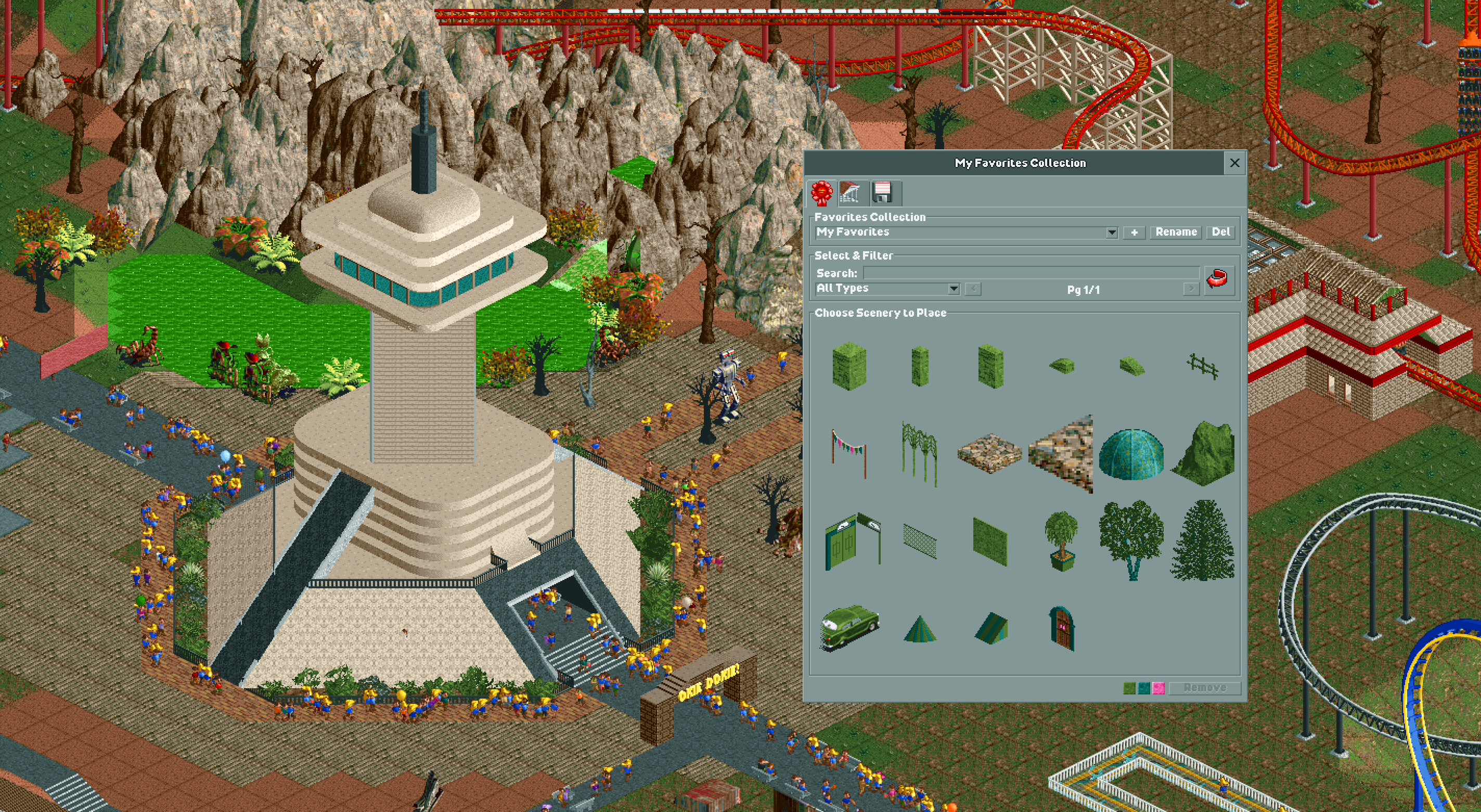
A plugin for OpenRCT2 that lets you build collections of your favorite scenery and place them quickly without hunting through the scenery menus.
Features
- Browse all scenery in a visual 6×5 grid with thumbnails
- Toggle favorites — click any scenery item to add or remove it from your active collection
- Pick from the map — use the eyedropper to click placed scenery on the map and add it to your collection
- Place favorites from your collection with a single click
- Multiple named collections — create, rename, and delete collections to organize your scenery
- Recent Items — a dynamic collection that automatically tracks everything you place, even from the native game UI, so your most-used scenery is always one click away
- Filter by type and group — narrow by category (Small Scenery, Walls, etc.) or by scenery group
- Search by name or object identifier
- Global color palette — set primary, secondary, and tertiary colors applied to every item you place
- Import / Export collections as JSON to share with others or back up your favorites
- Enable Objects from a collection in one click — loads all required scenery objects into the current save (offline only; disabled in multiplayer)
- Keyboard shortcut — press
Ctrl+F(customizable) to open or close the window from anywhere - Favorites persist across saves and scenarios via OpenRCT2's shared storage
Installation
- Download
favorite-scenery.js - Place it in your OpenRCT2 plugin folder:
- Windows:
%APPDATA%\OpenRCT2\plugin\ - macOS:
~/Library/Application Support/OpenRCT2/plugin/ - Linux:
~/.config/OpenRCT2/plugin/
- Windows:
- Launch or restart OpenRCT2
- Load a park, then open the plugin from the in-game Plugin menu
How to Use
First Tab — Favorites
This tab shows the items saved in your active collection. Use it to place your favorites.
| Control | Action |
|---|---|
| Collection dropdown | Switch between your named collections, or select Recent Items for the auto-tracked recents list |
| + button | Create a new collection |
| Rename button | Rename the active collection |
| Delete button | Delete the active collection (disabled if only one exists) |
| Type dropdown | Filter favorites by type, or choose Recently Placed |
| Group dropdown | Filter favorites by scenery group |
| Search box | Filter favorites by name or identifier |
| Click a tile | Activate the placement tool for that item — click again to cancel |
| Remove button | Hover over a tile to enable it, then click to remove that item from the collection |
Color Palette
Three color pickers at the bottom of the favorites grid set the primary, secondary, and tertiary colors applied to every item placed through the plugin. Your color choices are saved between sessions.
Second Tab — All Scenery
This tab shows every scenery object loaded in the current scenario. Use it to build your favorites collection.
| Control | Action |
|---|---|
| Search box | Filter items by name or identifier |
| Type dropdown | Narrow down to a specific scenery category |
| Group dropdown | Narrow down to a specific scenery group |
< / > buttons |
Navigate between pages |
| Click a tile | Toggle the item in/out of your active collection (pressed = favorited) |
| Eyedropper button | Activate the map picker — click placed scenery on the map to toggle it as a favorite |
Third Tab — Import / Export
Use this tab to share collections or move them between machines.
To export:
- Choose a collection from the dropdown (or All Collections)
- Click Export
- In the dialog that opens, press
Ctrl+AthenCtrl+Cto copy the JSON
To import:
- Click Import JSON...
- Paste the JSON you copied from another session and click OK
- Collections are merged — existing collections with matching names get new items added without duplicates; new collection names are created fresh
To enable objects from a collection (offline saves only):
- Choose a collection from the Enable Objects dropdown (or All Collections)
- Click Enable
- All scenery objects referenced by that collection are loaded into the current save
- The status label reports how many objects were enabled and how many were not found locally
Note: This feature is disabled in multiplayer. Object changes in multiplayer must go through the host.
Keyboard Shortcuts
| Shortcut | Action |
|---|---|
Ctrl+F |
Open / close the Favorite Scenery window |
| (none by default) | Rotate placement direction |
Shortcuts are customizable in-game via Options → Keyboard Shortcuts → Favorite Scenery.
Requirements
- OpenRCT2 v0.4.x or later (plugin API support required)
License
MIT